
How to use loadLIGOData
loadLIGOData is a GUI to load data from NDS server to your Matlab workspace. Once the data is loaded, you can do whatever you want to the data with the power of Matlab. Or you can quickly plot the data using another GUI called plotLigoData.
Getting loadLIGOData
The svn repository for loadLIGOData is https://nodus.ligo.caltech.edu:30889/svn/trunk/loadLIGOData/.
Running loadLIGOData
At the 40m, loadLIGOData is installed in /cvs/cds/caltech/apps/loadLIGOData/. You have to add this directory and the sub-directories to your Matlab path, like
addpath(genpath('/cvs/cds/caltech/apps/loadLIGOData'));Then just run loadLIGOData from the Matlab command line.
Alternative way to invoke it is to type loadLIGOData in the command line of a linux terminal. There is a wrapper script of that name which starts up a Matlab and executes loadLIGOData.
On allegra and rosalba, there is an icon to run loadLIGOData on the desktop.
Basic Usage
The loadLIGOData screen looks like this.
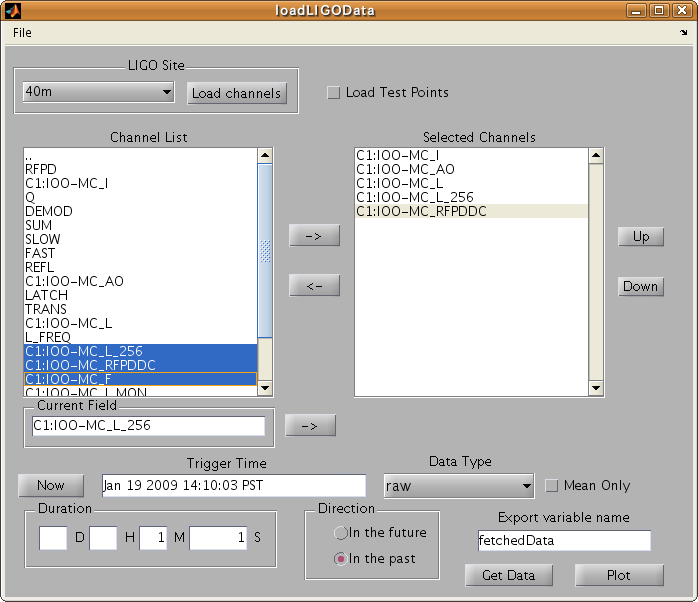
First select a site from the drop down menu at the top left. Then click the "Load channels" button. A channel list is loaded to the left list box. You can navigate through the list like a file directory browser. Add channels to the right list box by clicking "->" button. You can remove selected channels by "<-" button.
After channels you want to download are selected, put a trigger time in the "trigger time" field. The trigger time format is the one tconvert understands. Run tconvert without argument on a controls computer to see the help message. By clicking "Now" button, you can update the "trigger time" field to the current time.
Select the data type. If you select an average data type, you can also specify "Mean Only" option. If you check it, only the mean data is retrieved. Otherwise, "max" and "min" data are also retrieved.
"Duration" and "Direction" indicate the length and direction of the data from the trigger time.
When you click the "Get data" button, the data is downloaded from an NDS server. The result is saved into a variable specified in the "Export variable name" field. It is an array of structures with the same format as the output of mDV.
Quick plotting
Once the data is exported to a variable, you can plot the contents of the variable quickly using plotLigoDataGUI command. This is command will open a GUI window and let you choose some plot options. You can also open this window by clicking "Plot" button in the loadLIGOData window. Note that this GUI can be used to plot any data retrieved by mDV.
The GUI window looks like this.
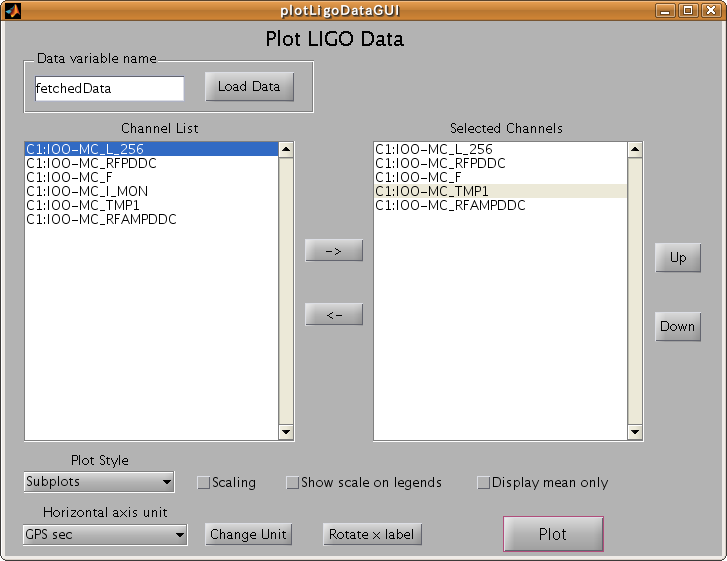
Enter the name of the variable to plot in the upper left text field and click "Load Data".
The left list box shows all the channels contained in the variable. The right side list box shows the channels to be plotted. You can add/remove channels from the right list box as well as change the order of the selected channels.
"Scaling" check box requires to scale data to fit within [-1,1] range when plotted. This is useful when you want to compare transients of multiple channels with significantly different signal levels.
Other options should be trivial.