|
Size: 2224
Comment:
|
Size: 2227
Comment: converted to 1.6 markup
|
| Deletions are marked like this. | Additions are marked like this. |
| Line 3: | Line 3: |
| . attachment:elog.png [[BR]] |
. {{attachment:elog.png}} |
| Line 6: | Line 5: |
| . We're using the [https://midas.psi.ch/elog/ Electronic Logbook] software by [https://midas.psi.ch/~stefan/ Steffan Ritt]. The elog is installed on Nodus under {{{/cvs/cds/caltech/elog/elog-2.8.0/}}}. | . We're using the [[https://midas.psi.ch/elog/|Electronic Logbook]] software by [[https://midas.psi.ch/~stefan/|Steffan Ritt]]. The elog is installed on Nodus under {{{/cvs/cds/caltech/elog/elog-2.8.0/}}}. |
| Line 10: | Line 9: |
| [[BR]] | <<BR>> |
| Line 24: | Line 24: |
| [[BR]] | <<BR>> |
| Line 30: | Line 30: |
| . 2. Go to /cvs/cds/caltech/elog/ . 3. Run ./start-elog-nodus |
. 2. Go to /cvs/cds/caltech/elog . 3. Run ./start-elog.csh |
| Line 33: | Line 33: |
| [[BR]] | <<BR>> |
| Line 43: | Line 43: |
| . attachment:contextmenu.png | . {{attachment:contextmenu.png}} |

We're using the Electronic Logbook software by Steffan Ritt. The elog is installed on Nodus under /cvs/cds/caltech/elog/elog-2.8.0/.
It can be accessed from either the address: http://nodus.ligo.caltech.edu:8080/40m/ or from the old one on Dziban http://dziban.ligo.caltech.edu:40/40m/.
Manual Restart procedure
The elog runs on background in Nodus. To kill the process, ssh nodus and then enter:
- {{{ pkill -3 elogd rm -f /var/run/elogd.pid }}}
To restart it enter:
./elogd -p 8080 -c /cvs/cds/caltech/elog/elog-2.8.0/elogd.cfg -D
The restarting script
- The following scripts executes the above commands for you if you are feeling particularly lazy or lost
- 1. Log into nodus
- 2. Go to /cvs/cds/caltech/elog
- 3. Run ./start-elog.csh
FCKeditor (HTML Editor)
A little subprogram called FCKeditor is responsible for the text editing interface that appears when the HTML encoding is chosen as a way to write/edit an entry. If the make command is used to compile the elog, the FCKeditor fails to be installed.
In that case, during the installation of the elog, one has just to go inside the path /cvs/cds/caltech/elog/elog-2.7.5/scripts/ and simply unzip the file fckeditor.zip. That's it.
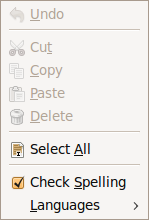
Enabling the browser's context menu
- The context menu is that one which pops up when right clicking with the mouse.
Under FCKeditor, the context menu is disabled by default. To enable it, one has to modify the FCKeditor config file /cvs/cds/caltech/elog/elog-2.7.5/scripts/fckeditor/fckconfig.js by setting the field FCKConfig.BrowserContextMenuOnCtrl = false ; to true.
Then to get the browser's context menu, instead of FCKeditor's, one has to hold <CTRL> when right clicking with the mouse.
- Sometime clearing the cash of the browser might be necessary in order for the change to have effect.