We're using the Electronic Logbook software by Steffan Ritt. The elog is installed on Nodus under /export/home/elog/elog/.
It can be accessed from the address: http://nodus.ligo.caltech.edu:8080/ (then redirected to https://nodus.ligo.caltech.edu:8081/ once you login)
Start procedure
If no elog is not already running, one can simply do this:
cd /export/elog/
./startELOGD.sh
Restart procedure
Check first what caused this. You can see this in the file: /export/elog/connections.log
Make sure that thing which crashed elogd is not present now. Most probably it is a heavy pdf with too many data points. Also, at this point, if you find that connections.log file has become too long (>10 Mb). Rename it to: OLD-YYYY_MM_DD_connections.log A new file will be created when you restart elog in the next step.
cd /export/elog/
./restartELOGD.sh
Note: sometimes the zombie elog process does not die with this process. Check if the elog process id was renewed after this action. If the zombie still exists, explicitly kill the process by "kill -9 ...".
Configuration
- The ELOG is run on our gateway machine, nodus. The elog software lives in /export/elog. (something in here about why its not on the shared disk)
- The configuration file for all the elogs lives in /export/elog/elog-common. It is elogd.cfg.
- The themes for each elog tab are in elog-common/themes/
Adding new logbook
Add the new logbook options in /export/elog/elog-common/elogd.cfg by taking inspiration from existing logbooks. Create a directory with the same name in /export/elog/elog-common/logbooks/, give it the correct permissions and set owner to controls in group 1001 using following:
sudo mkdir /export/elog/elog-common/logbooks/XYZ
sudo chmod 775 /export/elog/elog-common/logbooks/XYZ
sudo chown controls:1001 /export/elog/elog-common/logbooks/XYZ
Then restart elog using the above instructions.
FCKeditor (HTML Editor)
A little subprogram called FCKeditor is responsible for the text editing interface that appears when the HTML encoding is chosen as a way to write/edit an entry. If the make command is used to compile the elog, the FCKeditor fails to be installed.
In that case, during the installation of the elog, one has just to go inside the path /cvs/cds/caltech/elog/elog-2.7.5/scripts/ and simply unzip the file fckeditor.zip. That's it.
Enabling the browser's context menu
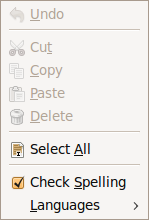
- The context menu is that one which pops up when right clicking with the mouse.
Under FCKeditor, the context menu is disabled by default. To enable it, one has to modify the FCKeditor config file /cvs/cds/caltech/elog/elog-2.7.5/scripts/fckeditor/fckconfig.js by setting the field FCKConfig.BrowserContextMenuOnCtrl = false ; to true.
Then to get the browser's context menu, instead of FCKeditor's, one has to hold <CTRL> when right clicking with the mouse.
- Sometime clearing the cash of the browser might be necessary in order for the change to have effect.