
|
Size: 6289
Comment:
|
Size: 7772
Comment:
|
| Deletions are marked like this. | Additions are marked like this. |
| Line 5: | Line 5: |
| <<TableOfContents(3)>> | <<TableOfContents(4)>> |
| Line 7: | Line 7: |
| == Slow DAQ Modules == | == Auxiliary DAQ Modules == |
| Line 9: | Line 9: |
| The new slow DAQ system uses the Acromag XT series DIN-rail mounted A/D, D/A and BIO modules. The model numbers are in the format XTYYY1, where "XT" is a static prefix, "YYY" determines the function, and the "1" denotes the ModBus/TCP version of the model. The 1 at the end is important, as the other variations will not interface with CDS through EPICS properly. | The auxiliary DAQ system uses the Acromag XT series DIN-rail mounted ADC, DAC and BIO modules. The model numbers are in the format XTYYY1, where "XT" is a static prefix, "YYY" determines the function, and the "1" as the last digit denotes the ModBus/TCP version of the model. The 1 at the end is important, as the other variations will not be able to interface with CDS through EPICS. |
| Line 15: | Line 15: |
| || XT1541 || DAC || 8 || 4 additional BIO channels || [[attachment:Acromag_XT1541_manual.pdf]] || | || XT1541 || DAC || 8 || 4 sourcing output BIO channels || [[attachment:Acromag_XT1541_manual.pdf]] || |
| Line 19: | Line 19: |
| === Configure Acromag XT modules === Initial configuration via USB is required before the units can be used on the network. This requires: * USB-to-miniUSB cable * Microsoft Windows (virtual) machine * Configuration Utilities: [[attachment:9500465D.zip]] The above zip file contains the setup executable to install the configuration software for all different modules. Depending on the module, a different version of the utility needs to be launched after install. As during operation, the to-be-configured device needs to be powered by a 12-32V DC voltage source, either through the designated blue plug-in terminal on the bottom, or the clip-on dock on the rail. On a virtual machine it may be necessary to open some ports to allow the guest OS to access the physical USB device {{attachment:xt1XX1_config_screen1.png}} ==== Network Configuration ==== The primary screen looks identical for all models: {{attachment:xt1XX1_config_screen1.png}} Once the device is connected to the host via USB and the correct application has been launched, it will appear in the drop down menu. |
|
| Line 21: | Line 41: |
| === Configure Acromag XT modules === | |
| Line 23: | Line 42: |
| Initial configuration via USB is required before the units can be used on the network. This requires a USB-to-miniUSB cable, a Microsoft Windows (Version?) (virtual) machine, and the configuration utilities which can be downloaded from the Acromag website (login required). Each model requires a different flavor of the utility to be run. Virtual machines work with USB2.0 ports, but have issues when using USB3.0+ ports. The to-be-configured device needs to be powered by a 12-32V DC voltage source. | ||'''Hostname''' || '''Local IP''' || || C1X-ADCYY || 192.168.11X.2Y || || C1X-DACYY || 192.168.11X.4Y || || C1X-BIOYY || 192.168.11X.6Y || |
| Line 25: | Line 47: |
| {{attachment:xt1XX1_config_screen1.png}} | |
| Line 31: | Line 52: |
| * Fresh install of Debian Jessie (x86) with lightweight desktop environment | * Fresh install of Debian Jessie * username: '''controls''' * optional: lightweight desktop environment '''LXDE''' |
| Line 33: | Line 56: |
| * Set desired SSH privileges | * Give '''sudo''' privileges to '''controls''' * su * usermod -aG sudo controls * Set up SSH access * sudo apt-get install openssh-client * Set up martian and local ethernet adapters * Edit /etc/network/interfaces allow-hotplug eth0 iface eth0 inet static address 192.168.113.XX netmask 255.255.255.0 gateway 192.168.113.2 dns-nameservers 192.168.113.104 131.215.125.1 131.215.139.100 dns-search martian allow-hotplug eth1 iface eth1 inet static address 192.168.11Y.1 netmask 255.255.255.0 network 192.168.11Y.0 broadcast 192.168.11Y.255 ||'''Hostname''' || '''Martian IP''' || '''Local IP''' || || C1SUSAUX || 192.168.113.??? || 192.168.115.1 || || C1AUXEX || 192.168.113.??? || 192.168.114.1 || || C1AUXEY || 192.168.113.??? || 192.168.11?.1 || || C1PSL || 192.168.113.??? || 192.168.11?.1 || || C1VAC || 192.168.113.??? || 192.168.11?.1 || || C1??? || 192.168.113.??? || 192.168.11?.1 || |
| Line 36: | Line 90: |
* (Optional) Add LIGO repositories * Download EPICS-base distribution, Modbus package, and Asyn drivers, install & build (if not pre-built). The (only attempted) combination of EPICS base version 3.15.5 with ASyn 4-32 and Modbus R2-10-1 has been found to work (in combination with base 3.14.12.2_long on the rest of the machines) |
* sudo apt-get install nfs-common |
| Line 43: | Line 94: |
| * sudo apt-get install procserv |
Slow Controls
Old Slow Controls Machines (Pre-2017)
Contents
Auxiliary DAQ Modules
The auxiliary DAQ system uses the Acromag XT series DIN-rail mounted ADC, DAC and BIO modules. The model numbers are in the format XTYYY1, where "XT" is a static prefix, "YYY" determines the function, and the "1" as the last digit denotes the ModBus/TCP version of the model. The 1 at the end is important, as the other variations will not be able to interface with CDS through EPICS.
Module |
Function |
# Channels |
Notes |
Manual |
XT1111 |
BIO |
16 |
Sinking outputs |
|
XT1121 |
BIO |
16 |
Sourcing outputs |
|
XT1221 |
ADC |
8 |
Differential inputs |
|
XT1541 |
DAC |
8 |
4 sourcing output BIO channels |
HowTo
Configure Acromag XT modules
Initial configuration via USB is required before the units can be used on the network. This requires:
- USB-to-miniUSB cable
- Microsoft Windows (virtual) machine
Configuration Utilities: 9500465D.zip
The above zip file contains the setup executable to install the configuration software for all different modules. Depending on the module, a different version of the utility needs to be launched after install. As during operation, the to-be-configured device needs to be powered by a 12-32V DC voltage source, either through the designated blue plug-in terminal on the bottom, or the clip-on dock on the rail.
On a virtual machine it may be necessary to open some ports to allow the guest OS to access the physical USB device
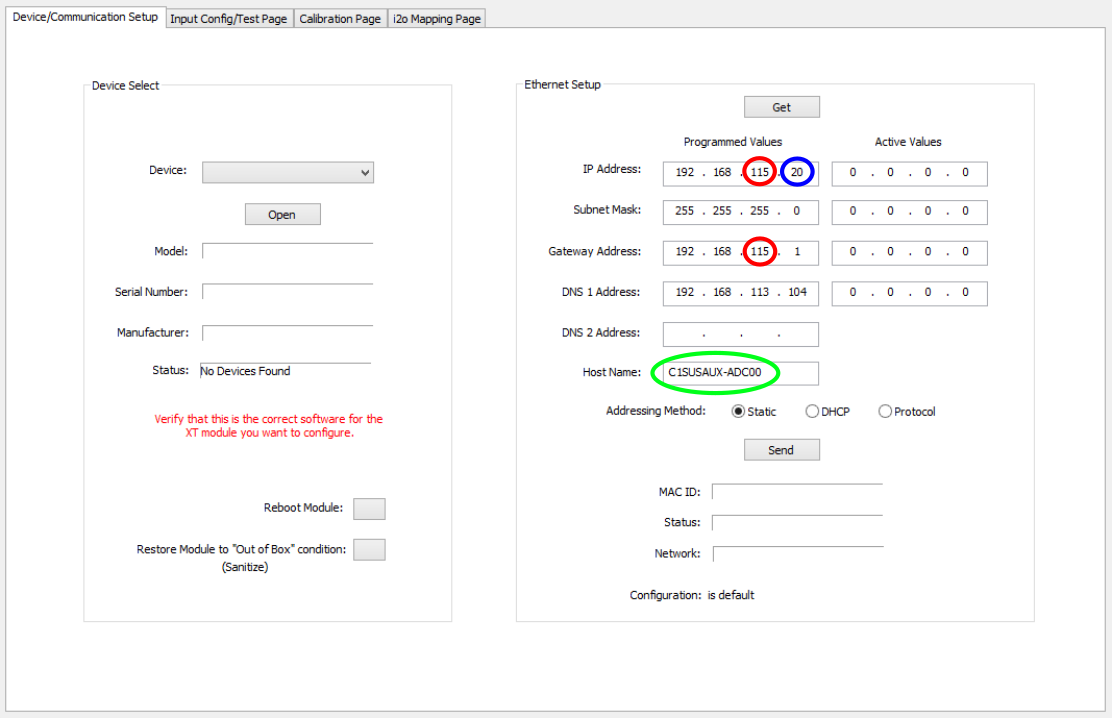
Network Configuration
The primary screen looks identical for all models:
Once the device is connected to the host via USB and the correct application has been launched, it will appear in the drop down menu.
Hostname |
Local IP |
C1X-ADCYY |
192.168.11X.2Y |
C1X-DACYY |
192.168.11X.4Y |
C1X-BIOYY |
192.168.11X.6Y |
Configure slow controls server machine
The following has proven to work with Debian Jessie running on a Supermicro SYS-5015A-H (Intel Atom processor without 64-bit support). This guide was written after-the-fact, so some steps may be missing. When configuring the next machine the gaps will be filled.
- Fresh install of Debian Jessie
username: controls
optional: lightweight desktop environment LXDE
Give sudo privileges to controls
- su
- usermod -aG sudo controls
- Set up SSH access
- sudo apt-get install openssh-client
- Set up martian and local ethernet adapters
- Edit /etc/network/interfaces
allow-hotplug eth0 iface eth0 inet static
- address 192.168.113.XX netmask 255.255.255.0 gateway 192.168.113.2 dns-nameservers 192.168.113.104 131.215.125.1 131.215.139.100 dns-search martian
allow-hotplug eth1 iface eth1 inet static
- address 192.168.11Y.1 netmask 255.255.255.0 network 192.168.11Y.0 broadcast 192.168.11Y.255
Hostname |
Martian IP |
Local IP |
C1SUSAUX |
192.168.113.??? |
192.168.115.1 |
C1AUXEX |
192.168.113.??? |
192.168.114.1 |
C1AUXEY |
192.168.113.??? |
192.168.11?.1 |
C1PSL |
192.168.113.??? |
192.168.11?.1 |
C1VAC |
192.168.113.??? |
192.168.11?.1 |
C1??? |
192.168.113.??? |
192.168.11?.1 |
- Set up remote file system access
- sudo apt-get install nfs-common
- Set up systemd service for automatic start of the Modbus IOC
- sudo apt-get install procserv
Configure XT unit Modbus driver
# Use the following commands for TCP/IP
# drvAsynIPPortConfigure(const char *portName,  # user-defined: used for subsequent referencing,
#                        const char *hostInfo,  # format: "IP-Address:Port". Standard port for Modbus is 502
#                        unsigned int priority, #
#                        int noAutoConnect,     #
#                        int noProcessEos);     #
#
# Examples:
# drvAsynIPPortConfigure("<TCP_PORT_NAME>","<UNIT_IP_ADDRESS>:502",0,0,1)
# drvAsynIPPortConfigure("c1auxex_xt1221a","192.168.114.11:502",0,0,1)
# modbusInterposeConfig(const char *portName, # reference to portName created with drvAsynIPPortConfigure command
# modbusLinkType linkType, #
# int timeoutMsec, # define timeout for waiting for response from unit
# int writeDelayMsec) #
#
# Example:
# modbusInterposeConfig("<TCP_PORT_NAME>",0,5000,0)
# modbusInterposeConfig("c1auxex_xt1221a",0,5000,0)#drvModbusAsynConfigure(portName, # used by channel definitions in .db file to reference this unit)
# tcpPortName, # reference to portName created with drvAsynIPPortConfigure command
# slaveAddress, #
# modbusFunction, # defines driver function for the unit (read register = 4, write register = 6, write single coil = 5) - see examples in next section
# modbusStartAddress, # ADC and binary channel numbering starts with 0, DAC channel numbering with 1
# modbusLength, # length in dataType units - see examples in next section
# dataType, # 4 = 16-bit signed integers (for A/D and D/A), 0 = binary (for BIO, duh)
# pollMsec, # how frequently to request a value in [ms]
# plcType); #
#
# Example:
# drvModbusAsynConfigure("<PORT_NAME>","<TCP_PORT_NAME>",0,<modbusFunction>,<modbusStartAddress>,<modbusLength>,<dataType>,<pollMsec>,"Acromag")
XT1221
drvModbusAsynConfigure("C1AUXEX_XT1221A_ADC","c1auxex_xt1221a",0,4,0,8,4,32,"Acromag")
XT1541
drvModbusAsynConfigure("C1AUXEX_XT1541A_DAC","c1auxex_xt1541a",0,6,1,8,4,32,"Acromag")
drvModbusAsynConfigure("C1AUXEX_XT1541A_BIO","c1auxex_xt1541a",0,5,0,4,0,32,"Acromag")
XT1111 & 1121
drvModbusAsynConfigure("C1AUXEX_XT1111A_BIO","c1auxex_xt1111a",0,6,0,4,0,32,"Acromag")
Define EPICS channels
Note: Modbus/TCP is simply a protocol for sending commands via TCP that the XT units can interpret, as in read/write the correct register values to/from the channels. There may be multiple ways to define the channels have the same effect. The settings reported here have been found to work as intended.
Many of the fields in the EPICS records are somewhat supplemental and not required for the channel definitions, but some have real effect in MEDM screens, such as upper limits on slider bars and the such.
XT1221
field(INP,"@asynMask(<ADC_UNIT_PORT_NAME> 0 -16)MODBUS_DATA")
XT1541
record(ao, "<AO_CHANNEL_NAME>")
{
        field(DTYP,"asynInt32")
        field(OUT,"@asynMask(<DAC_UNIT_PORT_NAME>, 0, -16)MODBUS_DATA")
}
record(bo, "<BO_CHANNEL_NAME>")
{
field(DTYP,"asynUInt32Digital")
field(OUT,"@asynMask(<DAC_UNIT_PORT_NAME>, 3, 0x1)")
}
XT1111 & 1121
record( bo, "CHANNEL_NAME")
{
        field(DTYP,"asynUInt32Digital")
        field(OUT,"@asynMask(BIO0_Reg, 0, 0x1)")
}