
Slow Controls Upgrade Procedure
Updated Mar 2019 Jon Richardson
Updated Jul 2019 gautam
Hardware
Auxiliary DAQ Modules
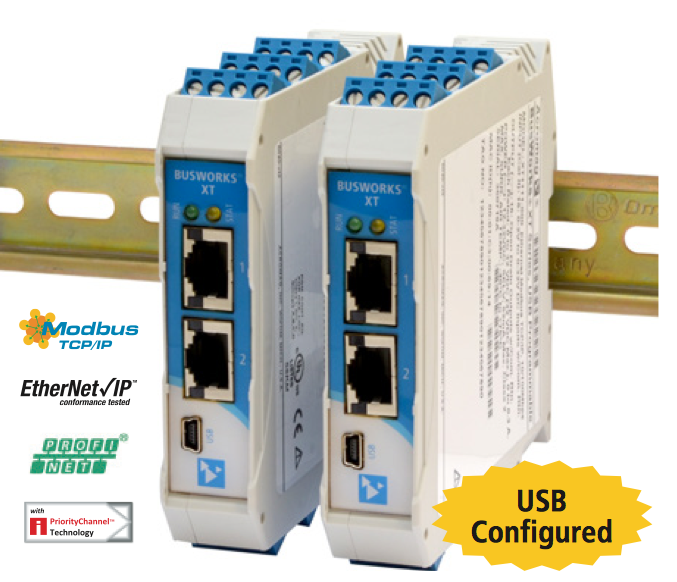
The new auxiliary DAQ systems use the Acromag XT series DIN-rail mounted ADC, DAC and BIO modules. The model numbers are in the format XTYYY1, where "XT" is a static prefix, "YYY" determines the function, and the "1" as the last digit denotes the ModBus/TCP version of the model. The 1 at the end is important, as the other variations will not be able to interface with CDS through EPICS.
Module |
Function |
# Channels |
Notes |
Manual |
XT1111 |
BIO |
16 |
Sinking outputs |
|
XT1121 |
BIO |
16 |
Sourcing outputs |
|
XT1221 |
ADC |
8 |
Differential inputs |
|
XT1541 |
DAC |
8 |
4 sourcing output BIO channels |
Rackmount Chassis
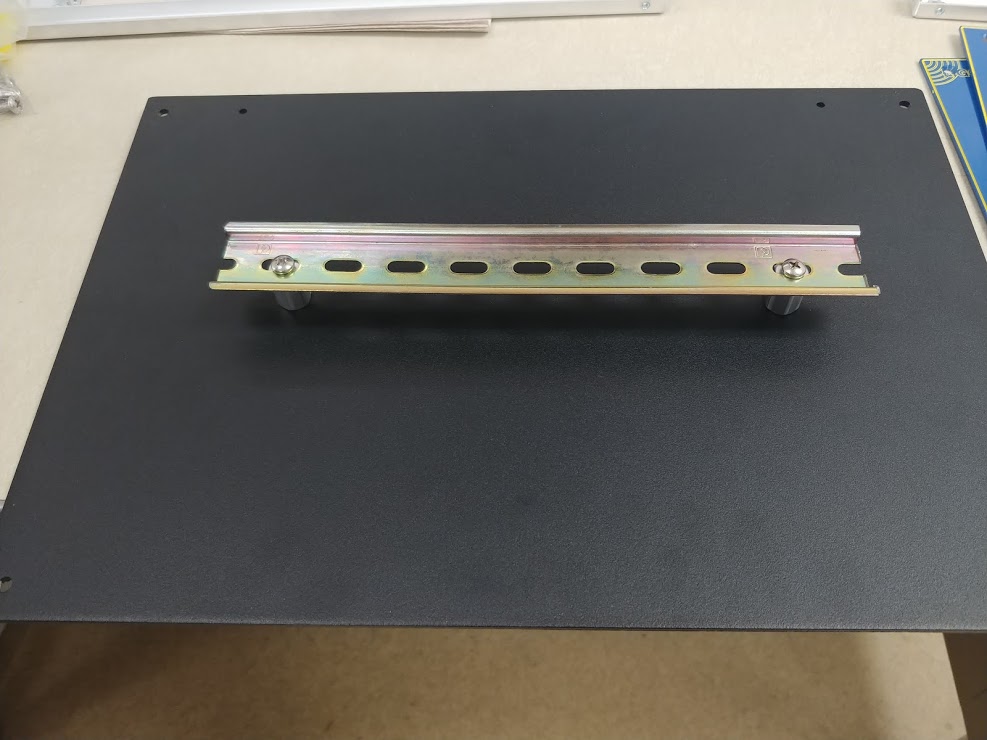
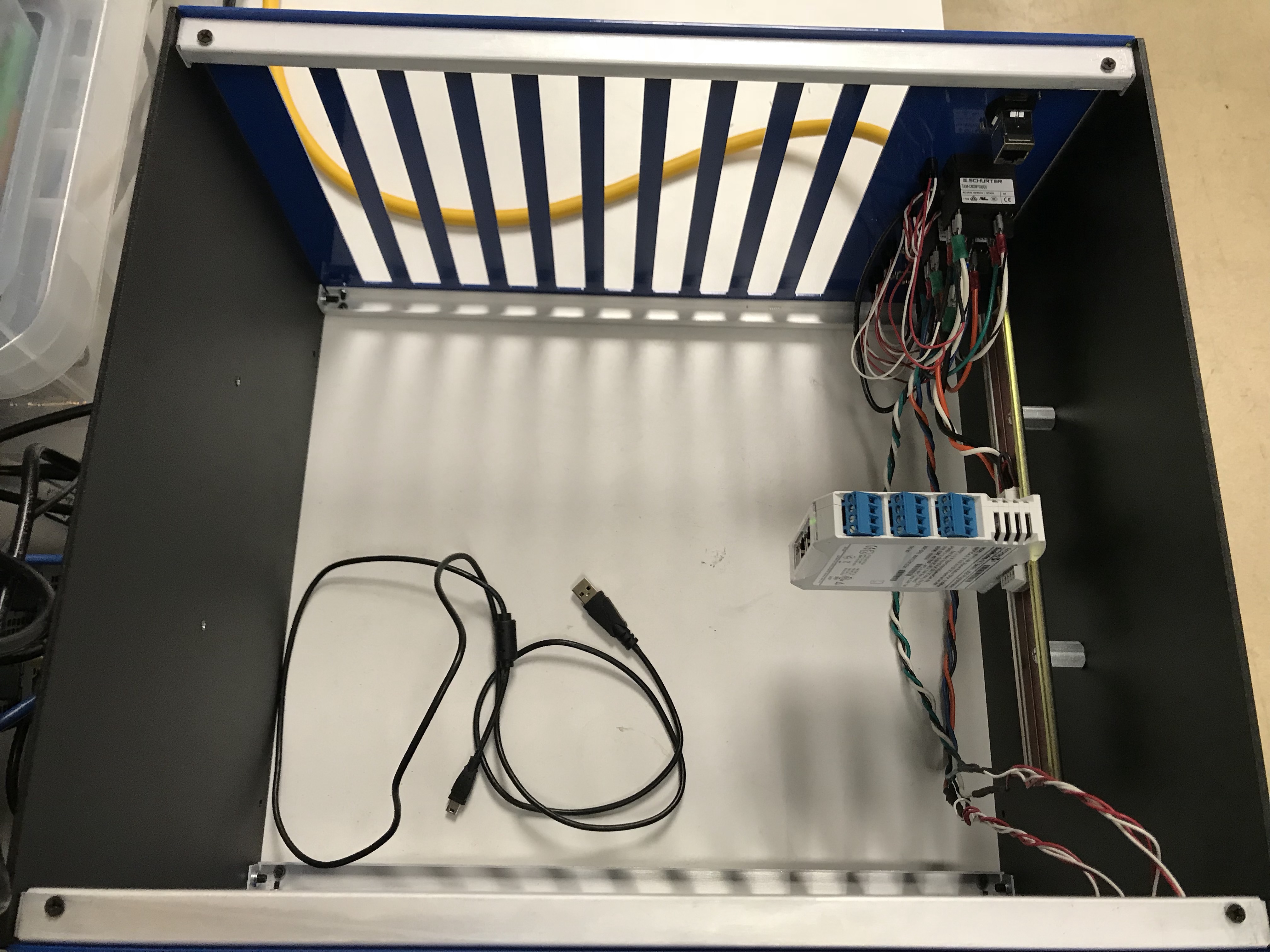
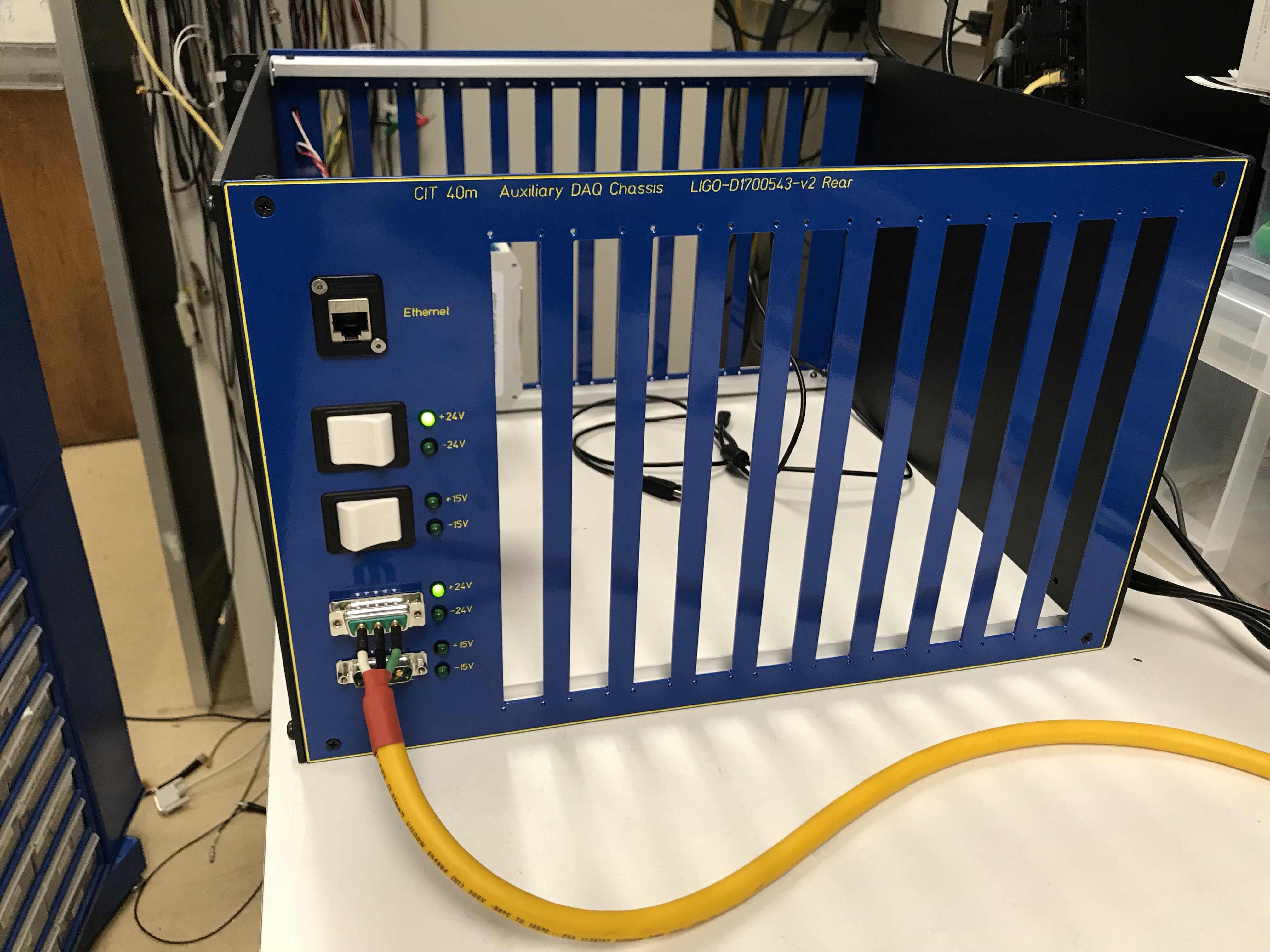
The Acromag units are mounted on a DIN rail inside a custom 6U rackmount chassis. To mount the DIN rails two screw holes need be drilled on each side of the Acromag chassis. The Din rails are then screwed to the sides using spacers as shown below. A 24 V DC power source connected through the rear of the chassis provides power for the Acromag units. A second 15 V DC source connected in the same way provides the excitation source for Acromag outputs. Note that the XT1121 model can get the excitation voltage only from the terminals so additional wiring is needed.
A diagram of the internal chassis wiring is shown below. Note:
- Although not shown in the diagram, all the LEDs should be connected in series to 1kOhm resistors in order to work properly.
- A typical Acromag module draws ~ 0.1A. Based on the number of modules to be installed choose wires that can handle the expected total amount of current.
Acromag Chassis Assembly Instructions
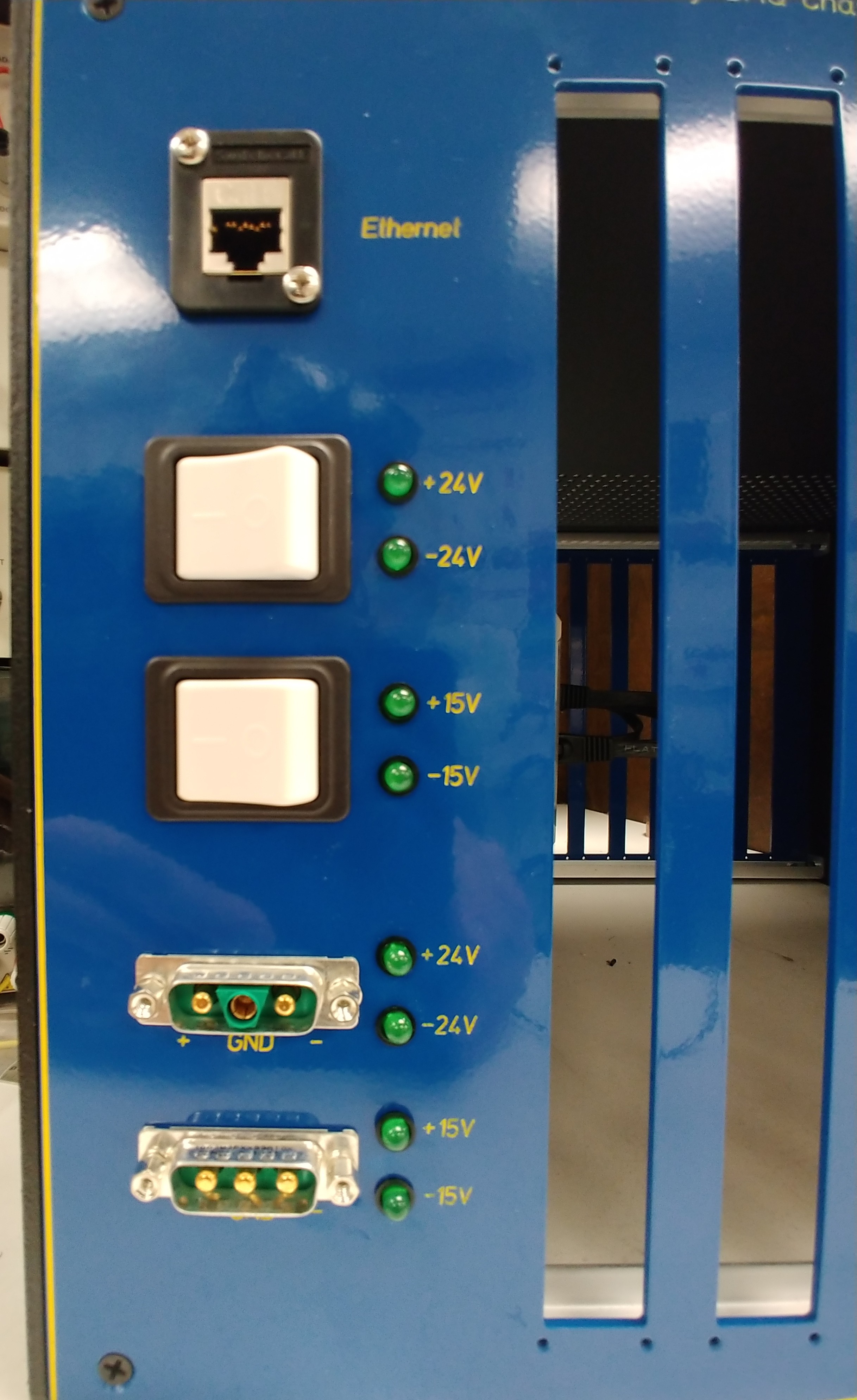
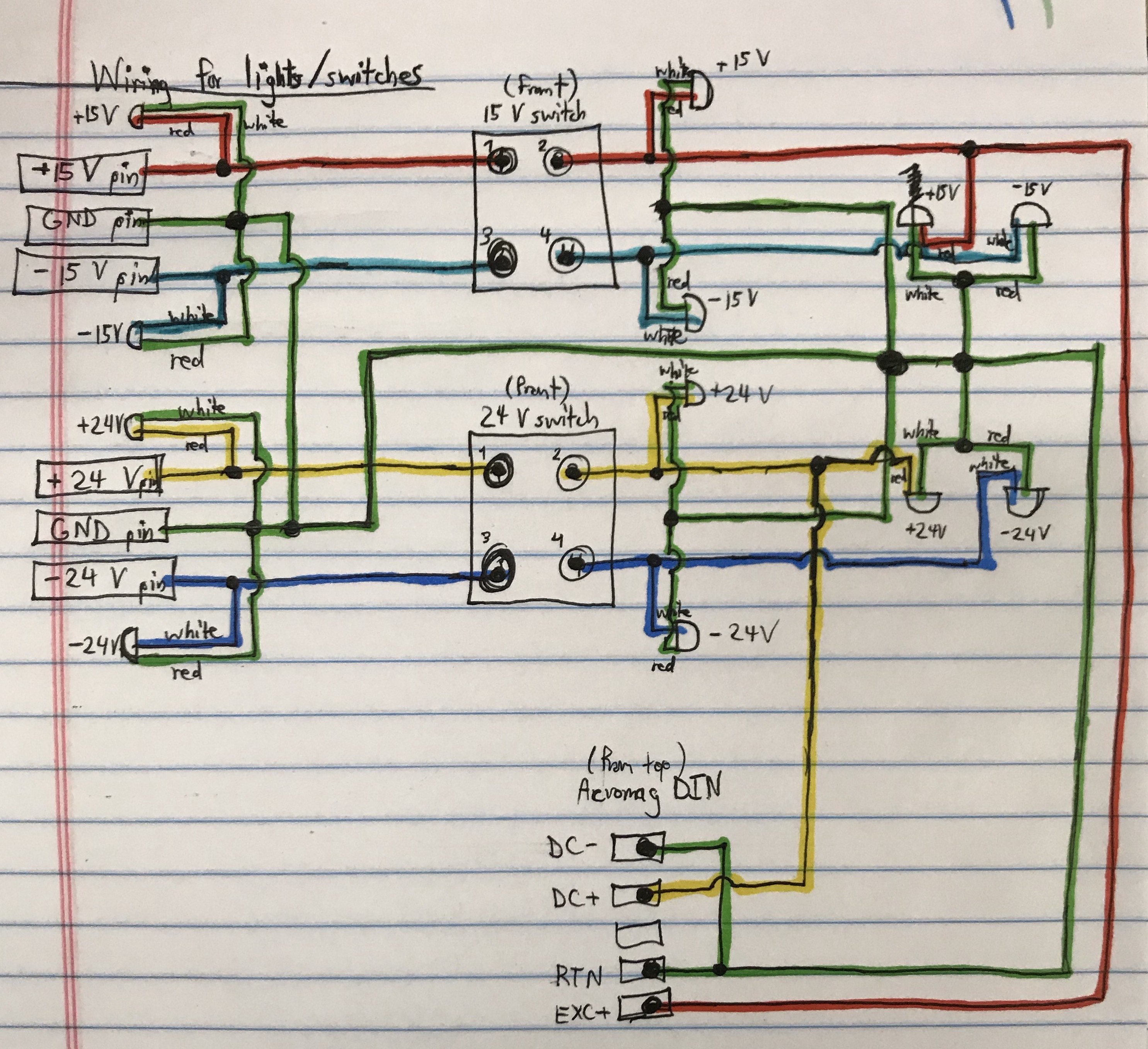
C1SUSAUX Chassis Wiring
[Anchal, Paco: Elog thread: 40m/16700
A schematic diagram for the wiring of C1SUSAUX2 acromag chassis is present in this box folder. The path to the files is:
.../Box Sync/40m/BHD40m/Electronics/wiring/Altium/40m_wiring_diagram/40m_SUS_Wiring/System_Diagram_40mBHD
Here the complete wiring diagram is shown. The associated files for hosting the channels are present in this repository. In particular, the Excel file saved in this repository, C1SUSAUX2_Acromag_Chassis_Wiring.xlsx gives a table of wiring connections and a step by step process on how to connect these wires. A google spreadsheet copy is present here but this might not be available later, someone should copy it to foteee account.
Each suspension has 2 sets of front panels that support 6 DB9 connectors each. These are (XXX 3 letter suspension code such as LO1, AS1 etc):
- XXX-9M-1 (to Sat Amp, PD Mon Chs 1-4)
- XXX-9M-2 (to Sat Amp, PD Mon Chs 5-8)
- XXX-9M-3 (to HAM-A Coil Driver #1, Monitors for coil voltage)
- XXX-9M-4 (to HAM-A Coil Driver #2, Monitors for coil voltage)
- XXX-9M-5 (to HAM-A Coil Driver #1, Binary Outputs for Enable Monitor)
- XXX-9M-6 (to HAM-A Coil Driver #2, Binary Outputs for Enable Monitor)
- XXX-9F-1 (to HAM-A Coil Driver #1, Binary Inputs for Run/Acquire/Enable control)
- XXX-9F-2 (to HAM-A Coil Driver #2, Binary Inputs for Run/Acquire/Enable control)
- XXX-9M-7 (to LO1-9F-1 breakout board, Splices dewhitening switching signals from RTS)
Note: XXX-9M-3 and XXX-9M-4 were not installed in C1SUSAUX2 chassis due to lack of acromag cards at that time. If coil voltage monitors are to be installed, they will go to this place.
Note: In this particular implementation, all enable signals for coil outputs were merged together due to a lack of Acromag cards. Wiring with acromag cards would be slightly different if individual coil output enable/disable option is required.
PCB Implementation
This wiring implementation is not scalable though and has a lot of possible failure points in connections. In the future, we should try to design PCB layouts that implement this wiring faithfully. Following is a rough plan of how this can be done:
DB9 Connector PCBs
For each of the two kinds of front panels that are used for a suspension, a single PCB with board-mounted DB9 connectors can be designed.
- One will have 4 male connectors (for ADCs) for XXX-9M-1,2,3,4.
- Second will have 3 male connectors XXX-9M-5,6,7 and 2 female connectors XXX-9F-1,2. This board will also have the wiring for splicing the dewhitening switching signals from RTS XXX-9M-7 to coil driver binary inputs XXX-9F-1,2)
Each of these PCB should have a back connector, DB15 should be good for the first one and DB25 should be good for the second one.
Interconnection motherboard PCB
The DB15 and DB25 cables (ribbon cables should be used) would connect with a single motherboard mounted on the top panel of the chassis. This board would contain the optical isolator circuits for the binary controls. LIGO has some other electronic boards where such PCB mount isolators have been used, those boards can be consulted for inspiration. This board will also have a power input connector. Finally, there should be PCB mount wire-to-board connection terminal blocks that can be used to connect this board to an array of Acromag cards mounted on the bottom panel on a DIN rail. This final connection to the Acromag cards would still be wired.
Weird idea, kind of out there: Maybe we can use tall header pins on a PCB board, spaced correctly so that connections to all the acromag cards are also wire-free. This would have been easier if Acromag could provide PCB mount hardware, but maybe some kind of contraption that is secure enough can be made. This will remove almost all the wires inside this chassis.
Host Computer
The Acromag modules communicate with a central host computer on a local network. The computer runs an EPICS IOC which interfaces with the Acromag modules via Modbus/TCP and hosts the EPICS records for analog and binary auxiliary channels. For these systems, we've chosen to use Supermicro SYS-5017A-EP 1U rackmount servers, which have two Ethernet interfaces. Two network interfaces are necessary for creating a closed local network between Acromag modules and host.
Set-Up Instructions
Configure Host Machine
The following has proven to work with Debian 8 (x64) on a Supermicro SYS-5017A-EP. Setting up the machine initially requires a local monitor, keyboard, and mouse connection. Once networking and remote access have been set up, the remaining steps can be carried out remotely.
Before beginning to install the OS, you need to give the machine a hard drive and some RAM. See this elog for some pics of where these go.
- Fresh install of Debian 8 (or most recent stable release) - you can use the USB stick labeled "Debian 8.5 boot disk"
Hostname: same as the old system. For testing purposes, you may want to append a numeral to the old hostname (e.g. c1susaux1) to permit the existing machine to run while the new one is being bench-tested.
Username: controls
Optional: lightweight desktop environment LXDE (recommended)
Hard-disk partitioning: Guided - use entire disk , choose All files in one partition option.
During the install, the installer will ask you about the default network interface to use (since the SuperMicro has 2 network cards). Choose eth0. Note that attempting to set up a DHCP connection to the internet for the installation process, you will have to plug into the correct physical ethernet jack - eth0 is the one on the left, with the SuperMicro seen from the rear. Also be sure to plug into the general-computing network switch, not the martian network switch. The static IP setup can be done later.
Give sudo privileges to user controls
su
/sbin/usermod -aG sudo controls
exit
Log out and log back in for the change to take effect.
Assign the host machine an available IP address on the martian network, 192.168.113.<XXX>
<XXX> is an integer in the range 0-255. Do not use 0, 10, or 255 (reserved)
See here for the list of in-use addresses
Register the host machine in the DNS lookup table on chiara
- Connect to chiara
ssh -X 192.168.113.104
Add the following line to /var/lib/bind/martian.hosts
<HOSTNAME> A 192.168.113.<XXX>
<HOSTNAME> is a placeholder for the assigned hostname
Search the file to make sure <XXX> is not already in use
Add the following line to /var/lib/bind/rev.113.168.192.in-addr.arpa
<XXX> PTR <HOSTNAME>
- Make sure that in both files you are inserting actual tabs.
sudo service bind9 restart
logout
- Connect to chiara
- Configure the martian and local ethernet adapters
Edit /etc/network/interfaces as follows
auto eth0
iface eth0 inet static
address 192.168.113.<XXX>
netmask 255.255.255.0
gateway 192.168.113.2
dns-nameservers 192.168.113.104 131.215.125.1 131.215.139.100
dns-search martian

auto eth1
iface eth1 inet static
address 192.168.114.<YYY>
netmask 255.255.255.0
<YYY> is a placeholder for the IP address of the host machine on the local subnet
- Comment out existing interface definitions.
- In Debian 10 the interfaces' names might be different than eth0, eth1. To find what are the names that you should use instead do
sudo dmesg | grep -i eth
.
- Enable DNS lookup on the martian network
Add the following lines to /etc/resolv.conf. Comment out all of the existing lines.
search martian
nameserver 192.168.113.104
Optional: If any devices on the subnet will need to access the martian network, follow these steps to set this up. Note that Acromags do not need martian access, as they will only be communicating with the local host.
- Enable IP forwarding from eth1 to eth0
su
echo 1 > /proc/sys/net/ipv4/ip_forward
exit
Configure IP tables to allow outgoing connections, while keeping the subnet invisible from the outsidesudo iptables -t nat -A POSTROUTING -o eth0 -j MASQUERADE sudo iptables -A FORWARD -i eth0 -o eth1 -m state --state RELATED,ESTABLISHED -j ACCEPT sudo iptables -A FORWARD -i eth1 -o eth0 -j ACCEPT
- Enable IP forwarding from eth1 to eth0
- NOTE: THIS PREVENTS EPICS FROM AUTO-DETECTING ALL THE OTHER IOCS
Optional: If an EPICS client application will be running on the host machine (e.g., a Python interlock/watchdog process), we must specify the EPICS server address. This is because the EPICS server automatically binds to all detected network interfaces, so local clients will see two server instances, one at 192.168.113.<XXX> and one at 192.168.114.<YYY> Add the following lines to /home/controls/.bashrc
echo EPICS_CA_AUTO_ADDR_LIST=NO>>/home/controls/.bashrc
echo EPICS_CA_ADDR_LIST=192.168.114.<YYY>>>/home/controls/.bashrc
Load the changes into the bash shellsource /home/controls/.bashrc
- Finally restart the networking service
sudo /etc/init.d/networking restart
- Update the Debian package manager
sudo apt update
sudo apt upgrade
sudo apt update
Set up incoming SSH access (second line is critical, check status of the ssh service using sudo service ssh status):
sudo apt -y install openssh-client
sudo apt -y install openssh-server
Optional: Set up incoming remote desktop access
sudo apt -y install xrdp
- Set up access to the 40m network drive
sudo apt -y install nfs-common
sudo mkdir /cvs/
sudo mkdir /cvs/cds
Add the following line to /etc/fstab
chiara:/home/cds /cvs/cds nfs rw,bg,nfsvers=3
Mount the network drivesudo mount -a
Create symbolic link for rtcds in opt for access to autoBurt filessudo ln -s /cvs/cds/rtcds /opt/
Configure Acromag DAQ Modules
Initial configuration via USB is required before the units can be used on the network. This requires:
- USB-to-miniUSB cable
- Microsoft Windows machine
Configuration Utilities: 9500465D.zip
The above zip file contains the setup executable to install the configuration software for all different modules. Depending on the module, a different version of the utility needs to be launched after install. In each screen in the utilities, parameters can be read (get) from or written (send) to the Acromag devices. During operation, the to-be-configured device needs to be powered by a 12-32V DC voltage source, either through the designated blue plug-in terminal on the bottom, or the clip-on dock on the rail. It is a good idea to "sanitize" used Acromagas before configuring them.
Network Configuration
The primary screen of the configuration utilities looks identical for all models:
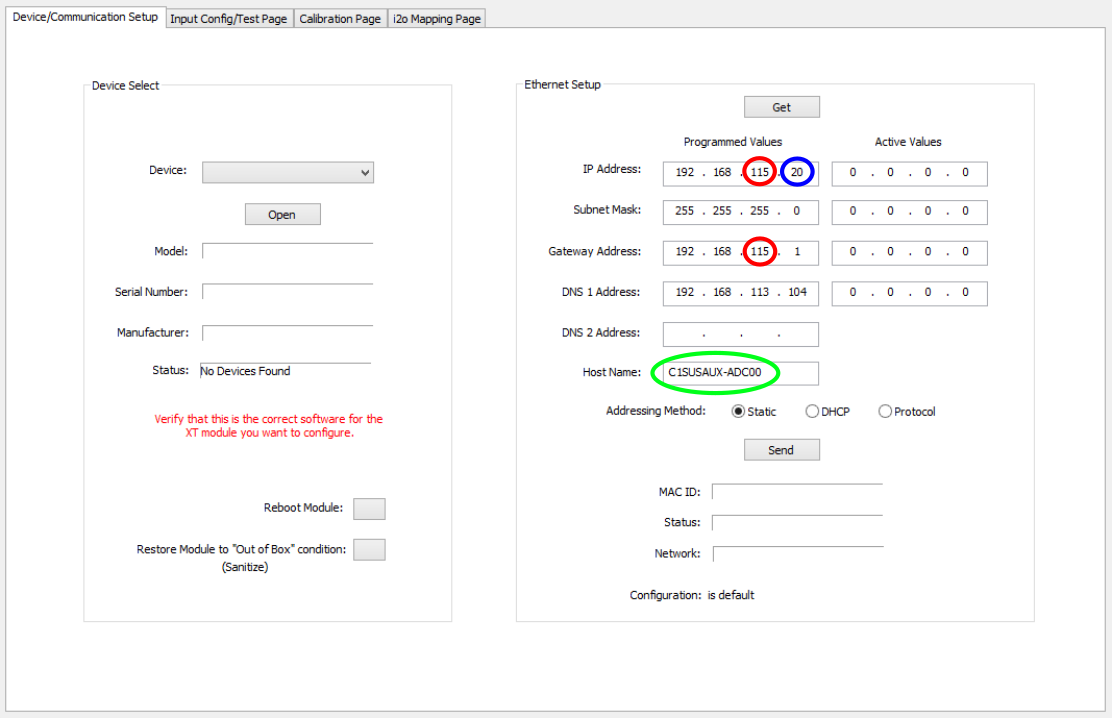
Once the device is connected to the host via USB and the correct application has been launched, it will appear in the drop-down menu. On the right, the device IP and other network parameters can be set. Every host machine of the auxiliary DAQ acts as a node between the martian network and a local subnet to which the Acromag modules belong and which is not directly accessible from other machines on the martian network.
- For consistency, the hostname and IP on the local network are assigned according to the following scheme:
Hostname
Local IP
C1XXX-ADC[DAC,BIO]YY
192.168.114.xxx
- The convention is that xxx starts from 20 for ADCs, 40 for DACs and 60 for BIOs.
- Other settings (of no practical significance) are
- Gateway is the local IP of the node machine
- DNS is that of Chiara on the martian network: 192.168.113.104
I/O Configuration
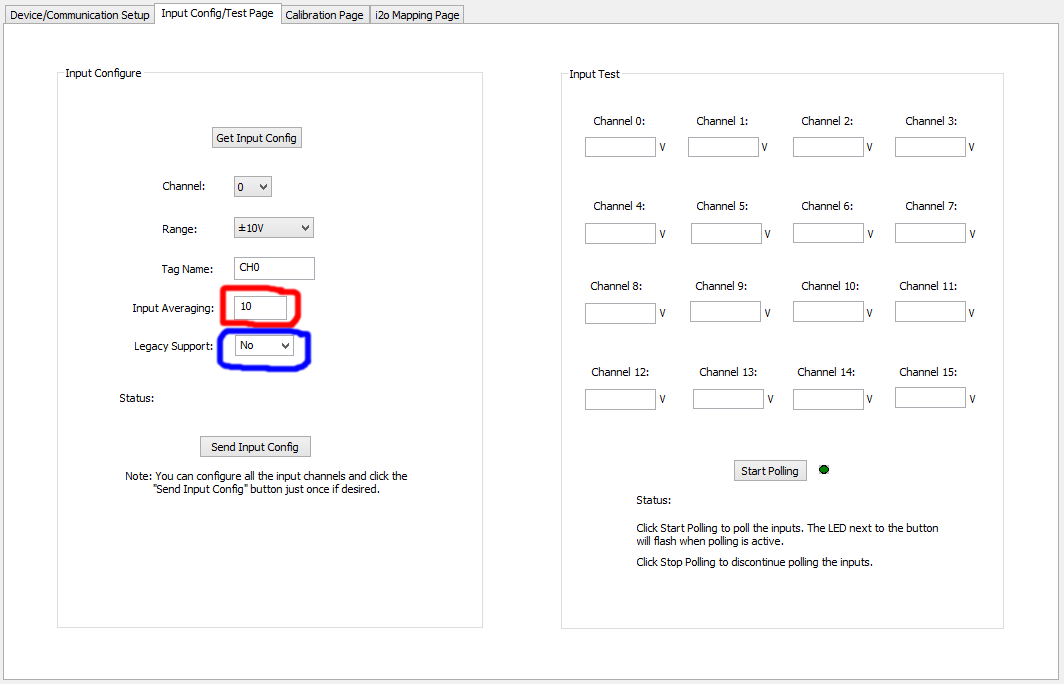
The second screen varies by module type. Non-default options are circled. Note that the non-default options have to be set for INDIVIDUAL channels! Once the non-default options of all the channels of one device are set, they can be easily set for the next devices by not allowing the utility to refresh the I/O configuration screen when a new device is connected.
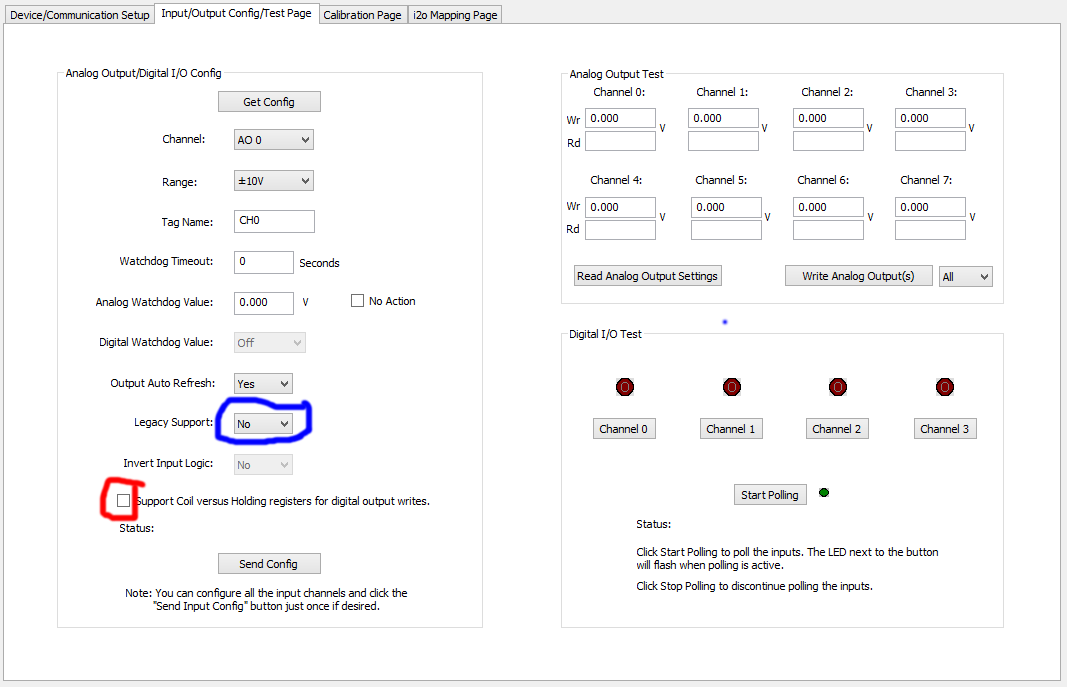
Install Modbus
Normally, Acromag systems are run using a Modbus executable hosted on a network drive. For reasons discussed in elog 14495, the new Acromag systems for critical infrastructure (e.g. Vacuum systems) cannot be reliably run in this way. It should be installed locally in such cases.
The following installation instructions are largely copied from an earlier note by Andrew Wade.
There are three packages needed to get modbus over TCP/IP (Acromags) working with an EPICS IOC process: the EPICS base and two modules that extend its function, asyn and modbus. The latest modbus package and its required modules must be downloaded from the official source. It is best to use the latest stable release of modbus and match with the recommend base and asyn versions. For example, modbus 2.11 recommends EPICS base 7.0.1 and asyn 4.33. To install you must download the source, install build tools, set some environment variables correctly, and then compile. Depending on the speed of the machine this might take 15-60 minutes.
- Install the usual basic build tools
sudo apt -y install curl g++ make libperl-dev libreadline-dev wget
Now we need to add some environment variables so the make process knows where to look for and put things.
Add the following lines to /home/controls/.bashrc
export EPICS_HOST_ARCH=linux-x86_64
export EPICS_ROOT=/opt/epics
export EPICS_BASE=${EPICS_ROOT}/base
export EPICS_BASE_BIN=${EPICS_BASE}/bin/${EPICS_HOST_ARCH}
export EPICS_BASE_LIB=${EPICS_BASE}/lib/${EPICS_HOST_ARCH}
Then load the changes into the bash shellsource /home/controls/.bashrc
- Download the source files from the official websites (linked above). Here we use the recommended stable combination of modbus-R2-11, asyn4-33, and base-7.0.1 (as of March 2019).
cd /home/controls/Downloads
wget https://epics.anl.gov/download/base/base-7.0.1.1.tar.gz
wget https://epics.anl.gov/download/modules/asyn4-33.tar.gz
wget https://github.com/epics-modules/modbus/archive/R2-11.tar.gz -O modbus-R2-11.tar.gz
- Now make the directories to build epics and its modules into
sudo mkdir /opt/epics
sudo mkdir /opt/epics/modules
- Untar the downloaded files into these directories
sudo tar xvzf base-7.0.1.1.tar.gz -C /opt/epics/
sudo tar xvzf asyn4-33.tar.gz -C /opt/epics/modules/
sudo tar xvzf modbus-R2-11.tar.gz -C /opt/epics/modules/
- You can delete the original tar files after this point if you like.
- Symlink these directories to simple (unversioned) names. This makes navigating easier and makes the final build version-agnostic.
sudo ln -s /opt/epics/base-7.0.1.1 /opt/epics/base
sudo ln -s /opt/epics/modules/asyn4-33 /opt/epics/modules/asyn
sudo ln -s /opt/epics/modules/modbus-R2-11 /opt/epics/modules/modbus
- Tweak the configuration files for the asyn and modbus modules so that they know where and how the EPICS base was built.
For asyn, open the file /opt/epics/modules/asyn/configure/RELEASE and comment out the lines for IPAC and SNCSEQ. Then change the line for SUPPORT to SUPPORT=/opt/epics/modules and the line for EPICS_BASE to EPICS_BASE=/opt/epics/base. The modified RELEASE file for asyn should look like
#RELEASE Location of external products

SUPPORT=/opt/epics/modules
-include $(TOP)/../configure/SUPPORT.$(EPICS_HOST_ARCH)

#  IPAC is only necessary if support for Greensprings IP488 is required
#  IPAC release V2-7 or later is required.
#IPAC=$(SUPPORT)/ipac-2-14

# SEQ is required for testIPServer
#SNCSEQ=$(SUPPORT)/seq-2-2-4

#  EPICS_BASE 3.14.6 or later is required
EPICS_BASE=/opt/epics/base
-include $(TOP)/../configure/EPICS_BASE.$(EPICS_HOST_ARCH)
For modbus, open the file /opt/epics/modules/modbus/configure/RELEASE and change the SUPPORT and EPICS_BASE lines in the same way as above. Also change the ASYN line to ASYN=$(SUPPORT)/asyn. The final RELEASE file for modbus should look like
#RELEASE Location of external products
# Run "gnumake clean uninstall install" in the application
# top directory each time this file is changed.
#
# NOTE: The build does not check dependancies on files
# external to this application. Thus you should run
# "gnumake clean uninstall install" in the top directory
# each time EPICS_BASE, SNCSEQ, or any other external
# module defined in the RELEASE file is rebuilt.

TEMPLATE_TOP=$(EPICS_BASE)/templates/makeBaseApp/top

SUPPORT=/opt/epics/modules
-include $(TOP)/../configure/SUPPORT.$(EPICS_HOST_ARCH)

ASYN=$(SUPPORT)/asyn

# If you don't want to install into $(TOP) then
# define INSTALL_LOCATION_APP here
#INSTALL_LOCATION_APP=<fullpathname>

# EPICS_BASE usually appears last so other apps can override stuff:
EPICS_BASE=/opt/epics/base
-include $(TOP)/../configure/EPICS_BASE.$(EPICS_HOST_ARCH)

#Capfast users may need the following definitions
#CAPFAST_TEMPLATES=
#SCH2EDIF_PATH=
- Now you're ready to compile the source code
- First build the EPICS base
cd /opt/epics/base
sudo make
Next build the asyn modulecd /opt/epics/modules/asyn sudo make
Finally build the modbus modulecd /opt/epics/modules/modbus sudo make
- First build the EPICS base
- Add the build location to the system path
Add the following line to /home/controls/.bashrc
export PATH=/opt/epics/base/bin/linux-x86_64:/opt/epics/extensions/bin/linux-x86_64:/opt/epics/modules/modbus/bin/linux-x86_64:/opt/epics/modules/asyn/bin/linux-x86_64:$PATH
export LD_LIBRARY_PATH=$EPICS_BASE_LIB
Load the changes into the bash shellsource /home/controls/.bashrc
Configure Modbus Driver
The EPICS binary modbusApp which launches the EPICS IOCs for the auxiliary DAQ system requires a .cmd instruction file which sets up the communication between the Acromag units and the EPICS IOC. The .cmd file is placed in /cvs/cds/caltech/target/<HOSTNAME>/<HOSTNAME>.cmd. It is largely similar to other EPICS binaries which launch an IOC, such as softIOC, with the addition that it can load the appropriate drivers for the modbus protocol prior to launching the IOC.
The file header consists of path definitions. At the current time there are no system variables pointing to these paths globally set, so the paths are explicitly defined.
epicsEnvSet("IOC", "c1<HOSTNAME>_iocconfig")   # insert proper hostname
epicsEnvSet("ARCH","linux-x86_64")
epicsEnvSet("TOP","/opt/epics/modules/modbus")
epicsEnvSet("MDBTOP","$(TOP)")
dbLoadDatabase("$(MDBTOP)/dbd/modbus.dbd")
modbus_registerRecordDeviceDriver(pdbbase)
Each Acromag unit requires a set of three instructions which define the driver and Modbus parameters for the handshake during communication.
drvAsynIPPortConfigure(const char *portName,  # user-defined: used for subsequent referencing,
                       const char *hostInfo,  # format: "IP-Address:Port". Standard port for Modbus is 502
                       unsigned int priority, #
                       int noAutoConnect,     #
                       int noProcessEos);     #

modbusInterposeConfig(const char *portName,    # reference to portName created with drvAsynIPPortConfigure command
                      modbusLinkType linkType, #
                      int timeoutMsec,         # define timeout for waiting for response from unit
                      int writeDelayMsec)      #

drvModbusAsynConfigure(portName,                # used by channel definitions in .db file to reference this unit)
                       tcpPortName,             # reference to portName created with drvAsynIPPortConfigure command
                       slaveAddress,            #
                       modbusFunction,          # defines driver function for the unit (read register = 4, write register = 6, write single coil = 5) - see examples in next section
                       modbusStartAddress,      # ADC and binary channel numbering starts with 0, DAC channel numbering with 1
                       modbusLength,            # length in dataType units - see examples in next section
                       dataType,                # 4 = 16-bit signed integers (for A/D and D/A), 0 = binary (for BIO, duh)
                       pollMsec,                # how frequently to request a value in [ms]
                       plcType);                #
Examples
A generic example sequence would be
drvAsynIPPortConfigure("<TCP_PORT_NAME>","<UNIT_IP_ADDRESS>:502",0,0,1)
modbusInterposeConfig("<TCP_PORT_NAME>",0,5000,0)
drvModbusAsynConfigure("<PORT_NAME>","<TCP_PORT_NAME>",0,<modbusFunction>,<modbusStartAddress>,<modbusLength>,<dataType>,<pollMsec>,"Acromag")
Note that the default values for the last instruction differ between the different XT DAQ modules.
ADC Module XT1221:
drvAsynIPPortConfigure("c1susaux_adc00","192.168.115.20:502",0,0,1)
modbusInterposeConfig("c1susaux_adc00",0,5000,0)
drvModbusAsynConfigure("C1SUSAUX_ADC00","c1susaux_adc00",0,4,0,8,4,32,"Acromag")
DAC (+4x BIO) Module XT1541:
drvAsynIPPortConfigure("c1susaux_dac00","192.168.115.40:502",0,0,1)
modbusInterposeConfig("c1susaux_dac00",0,5000,0)
drvModbusAsynConfigure("C1SUSAUX_DAC00","c1susaux_dac00",0,6,1,8,4,1,"Acromag")
drvModbusAsynConfigure("C1SUSAUX_DAC00_BIO","c1susaux_dac00",0,5,0,4,0,1,"Acromag")   # Separate instruction for integrated BIO channels
BIO Modules XT1111 & XT1121:
drvAsynIPPortConfigure("c1susaux_bio00","192.168.115.60:502",0,0,1)
modbusInterposeConfig("c1susaux_bio00",0,5000,0)
# For binary outputs:
drvModbusAsynConfigure("C1SUSAUX_BO00","c1susaux_bio00",0,6,0,4,0,1,"Acromag")
# For binary inputs:
drvModbusAsynConfigure("C1SUSAUX_BI00","c1susaux_bio00",0,4,0,4,0,1,"Acromag")
After loading the drivers and setting up the modbus communication, the .cmd file instructs to load EPICS database files, just like other EPICS IOC starters. Like the .cmd file, the database files are located in /cvs/cds/caltech/target/<HOSTNAME>.
dbLoadDatabase("/cvs/cds/caltech/target/<HOSTNAME>/<SUBSYSTEM>.db")
Define EPICS channels
Note: Modbus/TCP is simply a protocol for sending commands via TCP that the XT units can interpret, as in read/write the correct register values to/from the channels. There may be multiple ways to define the channels have the same effect. The settings reported here have been found to work as intended.
A good resource for some example/template ways of representing various types of EPICS channels in modbus parlance is given in the modbus installation itself. If you followed the instructions on this page and installed a local copy of EPICS, you may find the example files in /opt/epics/modules/modbus/modbusApp/Db. Otherwise, go look in the modbusApp/Db directory wherever you installed it. The examples are great!
The EPICS records in the .db files for the different DAQ channels are defined as follows (only fields relevant for proper addressing and conversion are shown):
XT1221 ADC Channels:
record(ai,"C1:<CHANNEL_NAME>")
{
        field(DTYP,"asynInt32")
        field(INP, "@asynMask(<PORT_NAME> <X> -16)MODBUS_DATA")   # <X>: 0-7 physical channel on Acromag unit
        field(LINR,"LINEAR")    # For count to float conversion: The ADC module converts +/-10V inputs to +/-30,000 counts (if legacy support is disabled, +/- 20,000 counts otherwise)
        field(ALSO,"1.09225")   # Rescales the raw counts from +/-30,000 to +/-32,767 BEFORE applying the linear conversion
        field(EGUF,"10")        # Corresponds to +32767 after rescale
        field(EGUL,"-10")       # Corresponds to -32767 after rescale
}
XT1541 DAC Channels:
record(ao,"C1:<CHANNEL_NAME>")
{
        field(DTYP,"asynInt32")
        field(OUT, "@asynMask(<PORT_NAME>, <X>, -16)MODBUS_DATA")   # <X>: 0-7 physical channel on Acromag unit
        field(LINR,"LINEAR")    # For count to float conversion: The DAC module converts +/-10V outputs to +/-30,000 counts (if legacy support is disabled, +/- 20,000 counts otherwise)
        field(EGUF,"10")        # Corresponds to +32767 in the above scale
        field(EGUL,"-10")       # Corresponds to -32767 in the above scale
        field(ALSO,"1.09225")   # Finally rescales the raw counts from +/-32,767 to +/-30,000
}

'''XT1541 BIO Channels:'''
record(bo, "<CHANNEL_NAME>")
{
        field(DTYP,"asynInt32")
        field(OUT,"@asynMask(<PORT_NAME>, <X>, -16)MODBUS_DATA")
}
XT1111 & XT1121 BIO Channels:
For binary output:
record(bo, "C1:<CHANNEL_NAME>")
{
        field(DTYP,"asynUInt32Digital")
        field(OUT,"@asynMask(<PORT_NAME>, <X>, 0x<Y>)")   # <X>: 0-3    <Y>: 1,2,4,or 8
}
For binary input:
record(bi, "C1:<CHANNEL_NAME>")
{
        field(DTYP,"asynUInt32Digital")
        field(INP,"@asynMask(<PORT_NAME>, <X>, 0x<Y>)")   # <X>: 0-3    <Y>: 1,2,4,or 8
}
Note: The addressing scheme used to map the physical BIO channels to the above <X>, <Y> notation is as follows:
Ch |
<X> |
1x<Y> |
0 |
0 |
0x1 |
1 |
0 |
0x2 |
2 |
0 |
0x4 |
3 |
0 |
0x8 |
4 |
1 |
0x1 |
5 |
1 |
0x2 |
6 |
1 |
0x4 |
7 |
1 |
0x8 |
8 |
2 |
0x1 |
9 |
2 |
0x2 |
10 |
2 |
0x4 |
11 |
2 |
0x8 |
12 |
3 |
0x1 |
13 |
3 |
0x2 |
14 |
3 |
0x4 |
15 |
3 |
0x8 |
The above mapping can be used for the mbboDirect record type as well. This datatype basically maps multiple hardware BIO channels into a "BIT"/control word. An important specifier is the EPICS variable NOBT, which allows one to specify the number of bits that are controlled in tandem. An example mbboDirect record is:
grecord(mbboDirect,"C1:LSC-CM_BOOST2_BITS")
{
    field(DESC,"AO gain bits")
  field(DTYP,"asynUInt32Digital")
  field(OUT,"@asynMask(C1ISCAUX_BIO03 0 0x8)")
    field(NOBT,"2")
#   field(PHAS,"5")
#   field(SCAN,".1 second")
    field(OMSL,"closed_loop")
    field(DOL,"C1:LSC-CM_BOOST2_SET")
  field(PINI,"YES")
}
Channel Calibrations
Final Scripting
Now we'll set up the modbus IOC as a system service managed by the kernel. This allows the process to be automatically started on boot and restarted on failures. Also, during maintenance, the IOC can easily be stopped and started via simple command-line calls.
- Install procserv for proper detaching of Modbus IOC systemd service
sudo apt -y install procserv
Create a new file /etc/systemd/system/modbusIOC.service with the following content. The field <HOSTNAME> is a placeholder for the system name.
[Unit]
Description=ModbusIOC Service via procServ
Requires=network.target
After=syslog.target network.target
ConditionFileIsExecutable=/usr/bin/procServ
ConditionFileIsExecutable=/opt/epics/modules/modbus/bin/linux-x86_64/modbusApp
ConditionFileIsExecutable=/cvs/cds/caltech/target/<HOSTNAME>/<HOSTNAME>.cmd

[Service]
User=controls
Group=controls
WorkingDirectory=/cvs/cds/caltech/target/<HOSTNAME>

# Set environment variables for EPICS
EnvironmentFile=/cvs/cds/caltech/target/<HOSTNAME>/<HOSTNAME>.env

# First line enables logging to local file for debugging. The logfile tends to grow large when there are problems. Use second line for normal operation.
#ExecStart=/usr/bin/procServ -f -L /cvs/cds/caltech/target/<HOSTNAME>/modbusIOC.log -p /run/modbusioc.pid 8008 /opt/epics/modules/modbus/bin/linux-x86_64/modbusApp /cvs/cds/caltech/target/<HOSTNAME>/<HOSTNAME>.cmd
ExecStart=/usr/bin/procServ -f -p /run/modbusioc.pid 8008 /opt/epics/modules/modbus/bin/linux-x86_64/modbusApp /cvs/cds/caltech/target/<HOSTNAME>/<HOSTNAME>.cmd

Restart=always
RestartSec=30
KillMode=process

[Install]
WantedBy=multi-user.target
Create an environment file /cvs/cds/caltech/target/<HOSTNAME>/<HOSTNAME>.env with the following content. Any environment variables, including PATH, must be supplied through this file, as systemd does not have access to the bash shell environment.
export PATH=/opt/epics/base/bin/linux-x86_64:/opt/epics/extensions/bin/linux-x86_64:/opt/epics/modules/modbus/bin/linux-x86_64:/opt/epics/modules/asyn/bin/linux-x86_64:$PATH
In newer OSs (e.g. Debian 10) some packages that the Modbus uses might be missing. One of these confirmed issues is a missing libreadline package. An ad-hoc fix was found by fetching the latest version of libreadline and creating a symlink such that it appears like the old version of libreadline (see elog 15452 for more details)
sudo ln -s /usr/lib/x86_64-linux-gnu/libreadline.so.7 /usr/lib/x86_64-linux-gnu/libreadline.so.6
where libreadline.so.7 is the name of the new version of libreadline.
- Activate the new service
sudo systemctl enable modbusIOC.service
sudo systemctl start modbusIOC.service
Optional: installation of CDS Workstation tools
Sometimes, there are auxiliary scripts that need to be run on the Supermicro machines that interface with Acromags. For example, the interlock code on the vacuum system, or the latch logic for the CM and IMC servo boards. For this, it may be that you need to (locally) access some EPICS channels using, for example, ezca in python. In order to get the relevant python3 packages installed, the following steps are required:
Add the following line to /etc/apt/sources.list.d/lscsoft.list
deb http://software.ligo.org/lscsoft/debian/ jessie contrib
- Update and pull in the lscsoft keyring package:
   sudo apt-get update --allow-insecure-repositories
   sudo apt-get -y --force-yes install lscsoft-archive-keyring
- Add the cdssoft packages:
   wget -c http://apt.ligo-wa.caltech.edu/debian/pool/jessie-unstable/cdssoft-release-jessie/cdssoft-release-jessie_1.3.3_all.deb
   sudo dpkg -i cdssoft-release-jessie_1.3.3_all.deb
   sudo apt update
   sudo apt install cds-workstation
Then, you can setup the python script to run as a systemd service as was done for the modbusIOC.