
|
Size: 709
Comment:
|
← Revision 13 as of 2025-01-24 20:50:52 ⇥
Size: 3794
Comment:
|
| Deletions are marked like this. | Additions are marked like this. |
| Line 3: | Line 3: |
| Here you get instructions on how to modify a simulink model that runs on the FE machine, build it, install it and start it with the changes. | Here you get instructions on how to modify a simulink model that runs on the FE machine, build it, install it and start it with the changes. See this elog here: https://nodus.ligo.caltech.edu:8081/40m/16398. |
| Line 9: | Line 9: |
| Note, you do not need to stop running rtcds models for this step. | '''Note: you do not need to stop running rtcds models for this step.''' (Giving example for FE:c1lsc, model: c1oaf, change names appropriately): {{{ ssh c1lsc rtcds make c1oaf rtcds install c1oaf }}} == For New Models Only == [updated 01/24/2025] Another thing that needs to be done is to add the host and models in /etc/rtsystab in /diskless/root of fb: {{{ controls@fb1:~ 0$ sudo chroot /diskless/root fb1:/ 0# sudo nano /etc/rtsystab fb1:/ 0# exit }}} Add the following lines in /etc/rtsystab file above (giving example for FE:c1sus2, model: IOP + c1su2): {{{ c1sus2 c1x07 c1su2 }}} The above steps are still not sufficient for the daqd_ processes to know about the new models. This part is supossed to happen automatically, but does not happen in our CDS apparently. So everytime there is a new model, we need to edit the file '''/opt/rtcds/caltech/c1/target/daqd/master''' and add following lines to it: (Giving example for FE:c1sus2, model: c1su2, change names appropriately): {{{ # Fast Data Channel lists # c1sus2 /opt/rtcds/caltech/c1/chans/daq/C1SU2.ini # test point lists # c1sus2 /opt/rtcds/caltech/c1/target/gds/param/tpchn_c1su2.par }}} == Restart the models == ''' VERY IMPORTANT: Make sure all the watchdogs are shutdown on all the suspended optics before you attempt restarting any of the models. Also, it is a good idea to close the PSL shutter before changing the models. The script mentioned below would do it all for you. ''' If the model you modified or added is hosted in c1lsc, c1sus or c1ioo, run the following script to restart the three computers as these models could not be shut down independently for some unkown reason: {{{ /opt/rtcds/caltech/c1/scripts/cds/rebootC1LSC.sh }}} If the model you modified or added is hosted in c1iscex or c1iscey, you can do the following (giving example for FE: c1iscex, model: c1asx, replace names appropriately): {{{ ssh c1iscex rtcds restart c1asx }}} If you are going to reboot a whole FE, make sure you first start the IOP models named c1x01, c1x02, c1x03, c1x04, c1x05, and so on). Then start the remaining models one by one. == Post restart checklist == * Make sure that all indicators are green in C1CDS_FE_STATUS medm screen like the following: |
| Line 12: | Line 64: |
| == Restart the models == | {{attachment:ExampleCDSStatus.png}} * If you see the third Indicator on RTNS red or green, but everything else green, you can ignore it and reset the status by clicking the {{attachment:globaldiagreset.png}} button. * Sometimes, the DAQ processes do not start properly insync and you might see a red color on DC status on any of the models. When this happens, restart the daqd processes by doing: {{{ telnet fb 8083 shutdown }}} and click on {{attachment:mxstreamrestart.png}} button to restart the mxstream service on all of the FE machines. * '''COMMIT''' If everything went alright and your model is running correctly, please commit the changes made in the '''/cvs/cds/rtcds/userapps/trunk/isc/c1/models''' directory, atleast locally. If you have permissions, push it to the remote git.ligo server too. |
Modify.Build.Install.Start.
Here you get instructions on how to modify a simulink model that runs on the FE machine, build it, install it and start it with the changes. See this elog here: https://nodus.ligo.caltech.edu:8081/40m/16398.
Modify the simulink model
The simulink models can be found in /cvs/cds/rtcds/userapps/trunk/isc/c1/models. Find the appropriate model file, open it on matlab from one of the workstations in the control room and do the appropriate changes. To add a new DAQ channel, in the topmost simulink block in the #DAQ Channels list box, add the name of the channel you want to add without C1:XXX- part.
Build and Install
Note: you do not need to stop running rtcds models for this step.
(Giving example for FE:c1lsc, model: c1oaf, change names appropriately):
ssh c1lsc
rtcds make c1oaf
rtcds install c1oaf
For New Models Only
[updated 01/24/2025] Another thing that needs to be done is to add the host and models in /etc/rtsystab in /diskless/root of fb:
controls@fb1:~ 0$ sudo chroot /diskless/root
fb1:/ 0# sudo nano /etc/rtsystab
fb1:/ 0# exit
Add the following lines in /etc/rtsystab file above (giving example for FE:c1sus2, model: IOP + c1su2):
c1sus2 c1x07 c1su2
The above steps are still not sufficient for the daqd_ processes to know about the new models. This part is supossed to happen automatically, but does not happen in our CDS apparently. So everytime there is a new model, we need to edit the file /opt/rtcds/caltech/c1/target/daqd/master and add following lines to it: (Giving example for FE:c1sus2, model: c1su2, change names appropriately):
# Fast Data Channel lists
# c1sus2
/opt/rtcds/caltech/c1/chans/daq/C1SU2.ini

# test point lists
# c1sus2
/opt/rtcds/caltech/c1/target/gds/param/tpchn_c1su2.par
Restart the models
VERY IMPORTANT: Make sure all the watchdogs are shutdown on all the suspended optics before you attempt restarting any of the models. Also, it is a good idea to close the PSL shutter before changing the models. The script mentioned below would do it all for you.
If the model you modified or added is hosted in c1lsc, c1sus or c1ioo, run the following script to restart the three computers as these models could not be shut down independently for some unkown reason:
/opt/rtcds/caltech/c1/scripts/cds/rebootC1LSC.sh
If the model you modified or added is hosted in c1iscex or c1iscey, you can do the following (giving example for FE: c1iscex, model: c1asx, replace names appropriately):
ssh c1iscex
rtcds restart c1asx
If you are going to reboot a whole FE, make sure you first start the IOP models named c1x01, c1x02, c1x03, c1x04, c1x05, and so on). Then start the remaining models one by one.
Post restart checklist
- Make sure that all indicators are green in C1CDS_FE_STATUS medm screen like the following:
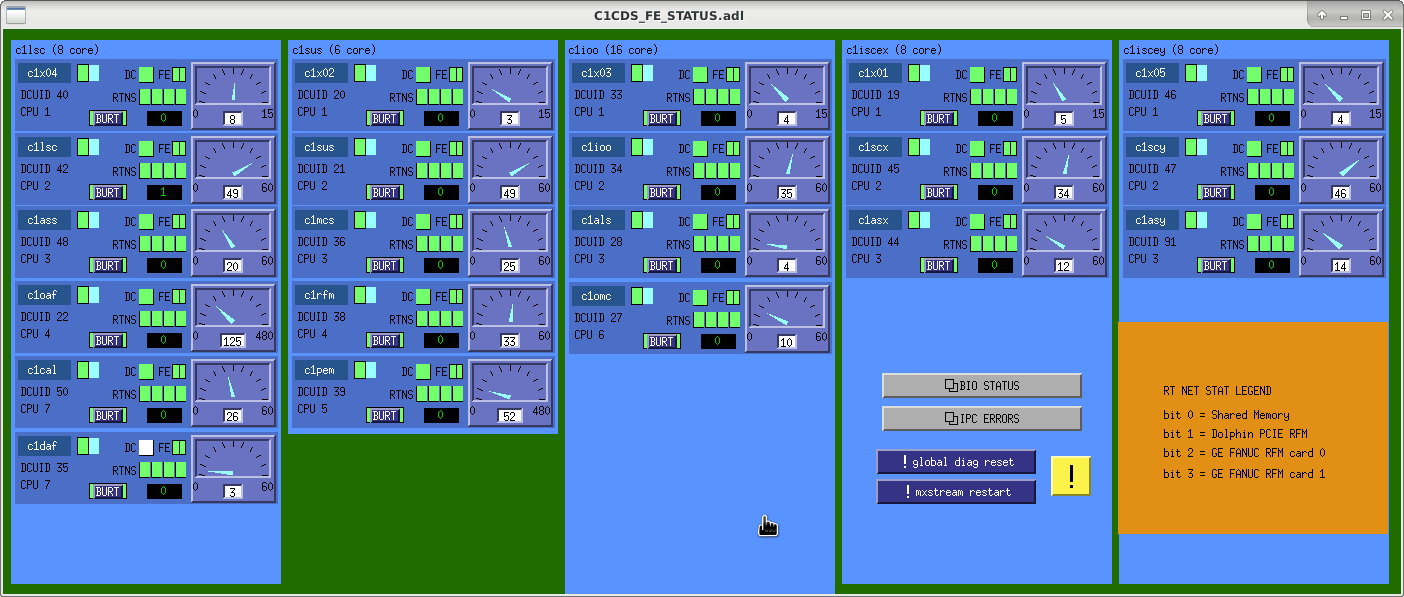
If you see the third Indicator on RTNS red or green, but everything else green, you can ignore it and reset the status by clicking the
 button.
 - Sometimes, the DAQ processes do not start properly insync and you might see a red color on DC status on any of the models. When this happens, restart the daqd processes by doing:
telnet fb 8083
shutdown
and click on
 button to restart the mxstream service on all of the FE machines.
 COMMIT If everything went alright and your model is running correctly, please commit the changes made in the /cvs/cds/rtcds/userapps/trunk/isc/c1/models directory, atleast locally. If you have permissions, push it to the remote git.ligo server too.