
|
Size: 2566
Comment:
|
Size: 2652
Comment:
|
| Deletions are marked like this. | Additions are marked like this. |
| Line 82: | Line 82: |
| === ccd/monitor arrangement === [[attachment|CCD_OCT3.pdf PDF]] attachment:CCD_OCT3.png |
Overview
Our new Video Switch is a [http://www.extron.com/product/product.aspx?id=mavplus3232v Extron MAV PLUS 3232].
attachment:mavpic.jpg
how to restore the matrix
access to http://192.168.113.92/ by an web browser
go to the control tab in the top of the page
go to the Global Presets in the left bar
click 40M Default
Setup Howto
- Connect ethernet cable directly to the videos switcher with a computer.
- from the computer, go to default switcher's address 192.168.254.254 by using web browser like firefox.
- if you can not see any pages in the browser, try telnet to 192.168.254.254 to check the connection.
- change the IP address, the Gateway address and subnet mask properly in the web page.
- put the video switcher into the network via another ethernet cable.
- you can access the switcher from anywhere in the 40m by using web browser
- connect analog video cables
- assign output-input matrix by accessing the switcher from an web browser
Docs
attachment:manuel.pdf
Configuration
network
name = LUCIANA
address = http://192.168.113.92/
channel assign
- more information about output channels and monitors are below.
channel assign
INPUT
channel
camera
state
1
MC2

2
Faraday
3
PSL output CAM
-
4
BS
5
MC13
camera disconnected
6
ITMX
7
ITMY
8
ETMX
9
ETMY
10
-
-
11
RCR
12
RCT
13
OMCR
-
14
PMCR
15
PSL IOO
-
16
IMCT
not aligned ?
17
PSL
-
18
IMCR
-
19
SPS
20
POB
-
21
POX
no camera
22
APS1
23
ETMXT
not aligned
24
ETMYT
no camera
25
POY
no camera
26
OMCT
monitors and output channels
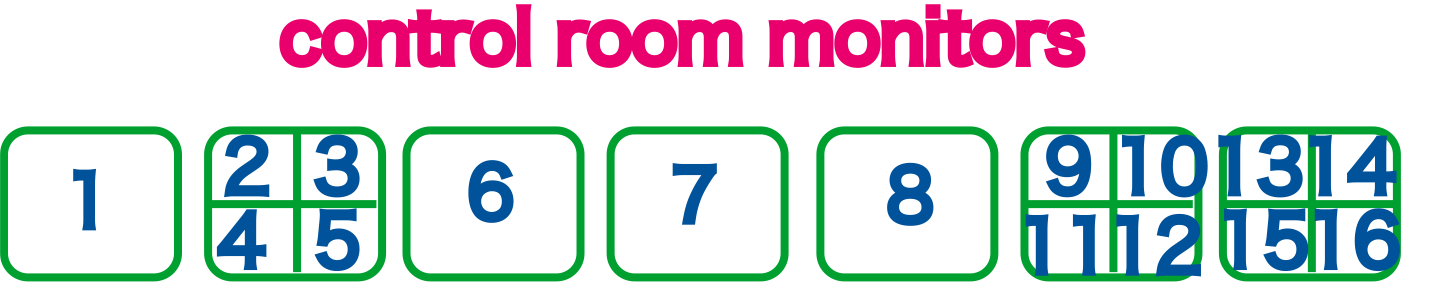
ccd/monitor arrangement
CCD_OCT3.pdf PDF attachment:CCD_OCT3.png