
|
Size: 228
Comment:
|
Size: 3098
Comment:
|
| Deletions are marked like this. | Additions are marked like this. |
| Line 4: | Line 4: |
| attachment:mavpic.jpg [[BR]][[BR]] == how to restore the matrix == 1. access to http://192.168.113.92/ by an web browser 1. go to the '' control '' tab in the top of the page 1. go to the '' Global Presets '' in the left bar 1. click '' 40M Default'' [[BR]][[BR]] |
|
| Line 5: | Line 15: |
| 1. 1. 1. |
1. Connect ethernet cable directly to the videos switcher with a computer. 1. from the computer, go to default switcher's address 192.168.254.254 by using web browser like firefox. 1. if you can not see any pages in the browser, try telnet to 192.168.254.254 to check the connection. 1. change the IP address, the Gateway address and subnet mask properly in the web page. 1. put the video switcher into the network via another ethernet cable. 1. you can access the switcher from anywhere in the 40m by using web browser 1. connect analog video cables 1. assign output-input matrix by accessing the switcher from an web browser |
| Line 9: | Line 24: |
| [[BR]][[BR]] | |
| Line 13: | Line 28: |
| attachment:quickref.pdf | attachment:quickref.pdf [[BR]] [[BR]] == Configuration == === network === * name = '''LUCIANA''' * address = http://192.168.113.92/ [[BR]][[BR]] === channel assign === . more information about output channels and monitors are below. ||||||||<style="text-align: center;">''' channel assign''' || ||||||<style="text-align: center;"> '''INPUT''' ||'''OUTPUTS''' || || ''channel'' || ''camera'' || ''state'' || || || 1 || MC2F || :) || || || 2 ||IFOPO || :) || || || 3 || OMCR || - || || || 4 || FI || :) || || || 5 || AS Spare || :) || || || 6 || ITMYF || :) || || || 7 || ITMXF || :) || || || 8 || ETMYF || :) || || || 9 || ETMXF || :) || || || 10 ||PMCR || - || || || 11 || RCR || :) || || || 12 || RCT || :) || || || 13 || PSL Spare || - || || || 14 || PMCT || :) || || || 15 || ETMXT || - || || || 16 || MC2T || :) || || || 17 || POP || - || || || 18 || IMCR || - || || || 19 || REFL || :) || || || 20 || MC1F/MC3F || - || || || 21 ||SRMF || no camera || || || 22 || AS || :) || || || 23 || ETMYT || not aligned || || || 24 || PRM/BS || no camera || || || 25 || OMCT || no camera || || || 26 || || || || || 27 || || || || || 28 || || || || || 29 || || || || || 30 || || || || || 31 || || || || || 32 || || || || === Note that this table shows the current channel assignment and that X is used for East arm and Y is used for South arm === [[BR]][[BR]] === monitors and output channels === . <<ImageLink(monitos.png, monitors and channels, height=150)>> === ccd/monitor arrangement === attachment:CCD_OCT3.pdf attachment:CCD_OCT3.png '''Note that this diagram is for VIDEO system upgrades so Y is used for East arm and X is used for South arm. ''' '''Please use this diagram for just finding the rough position of monitor or cameras because the system is not upgraded yet.''' '''Upgrade Plan is available at http://nodus.ligo.caltech.edu:8080/40m/4139 '''''' ''' ''' ''' |
Overview
Our new Video Switch is a [http://www.extron.com/product/product.aspx?id=mavplus3232v Extron MAV PLUS 3232].
attachment:mavpic.jpg
how to restore the matrix
access to http://192.168.113.92/ by an web browser
go to the control tab in the top of the page
go to the Global Presets in the left bar
click 40M Default
Setup Howto
- Connect ethernet cable directly to the videos switcher with a computer.
- from the computer, go to default switcher's address 192.168.254.254 by using web browser like firefox.
- if you can not see any pages in the browser, try telnet to 192.168.254.254 to check the connection.
- change the IP address, the Gateway address and subnet mask properly in the web page.
- put the video switcher into the network via another ethernet cable.
- you can access the switcher from anywhere in the 40m by using web browser
- connect analog video cables
- assign output-input matrix by accessing the switcher from an web browser
Docs
attachment:manuel.pdf
Configuration
network
name = LUCIANA
address = http://192.168.113.92/
channel assign
- more information about output channels and monitors are below.
channel assign
INPUT
OUTPUTS
channel
camera
state
1
MC2F

2
IFOPO
3
OMCR
-
4
FI
5
AS Spare
6
ITMYF
7
ITMXF
8
ETMYF
9
ETMXF
10
PMCR
-
11
RCR
12
RCT
13
PSL Spare
-
14
PMCT
15
ETMXT
-
16
MC2T
17
POP
-
18
IMCR
-
19
REFL
20
MC1F/MC3F
-
21
SRMF
no camera
22
AS
23
ETMYT
not aligned
24
PRM/BS
no camera
25
OMCT
no camera
26
27
28
29
30
31
32
Note that this table shows the current channel assignment and that X is used for East arm and Y is used for South arm
monitors and output channels
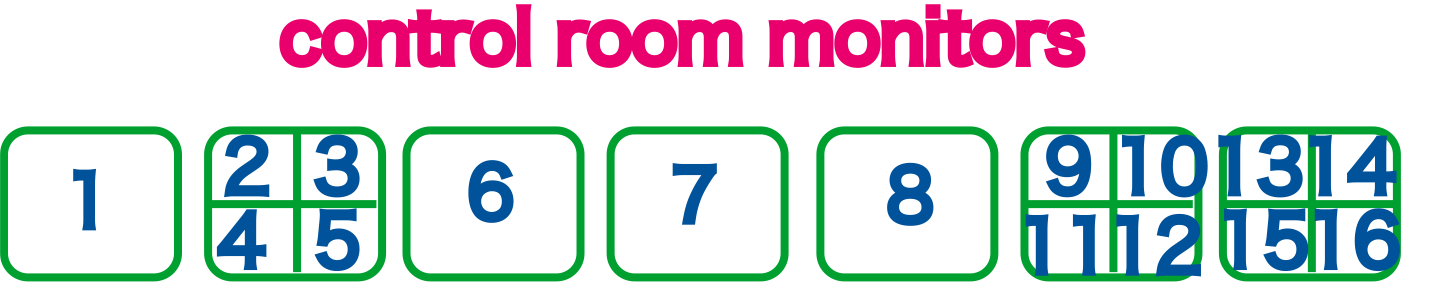
ccd/monitor arrangement
attachment:CCD_OCT3.pdf attachment:CCD_OCT3.png
Note that this diagram is for VIDEO system upgrades so Y is used for East arm and X is used for South arm.
Please use this diagram for just finding the rough position of monitor or cameras because the system is not upgraded yet.
Upgrade Plan is available at http://nodus.ligo.caltech.edu:8080/40m/4139